Automatic schedules
Your fixed schedules record themselves.
Why make someone who always works from 08:30 to 17:00 clock in every day? With Cloketa, their schedule is what counts. You only deal with what is out of the ordinary.
Set it up once, check when needed.
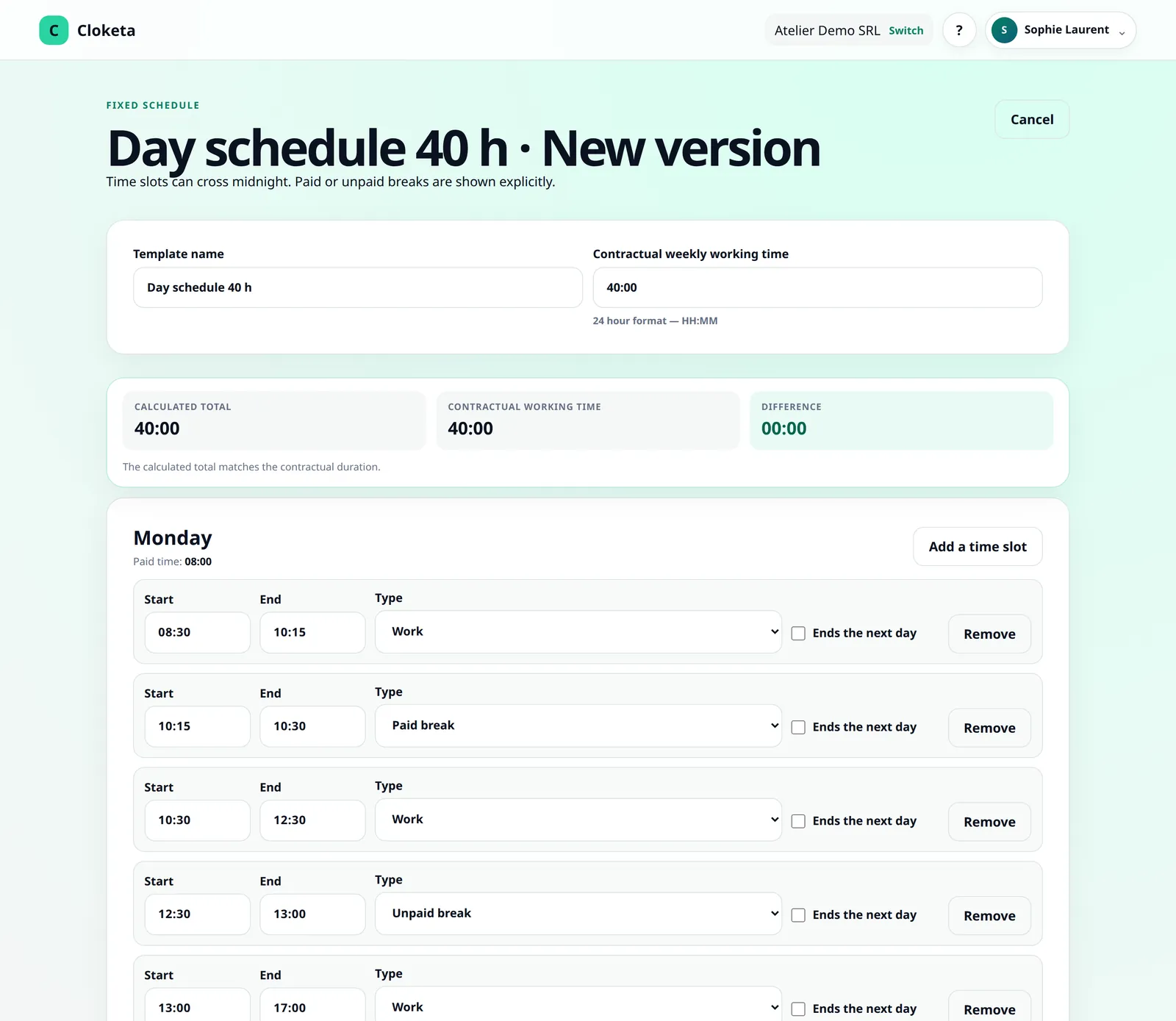
Create the schedule
Working days, start and end times, paid or unpaid breaks. The same schedule can be used for several workers.
Assign it and choose the mode
On the Schedules screen, you assign the schedule to the workers concerned and choose for each of them the « schedule » or « clocking » mode. The change can take effect from a given date. The others carry on clocking in as usual.
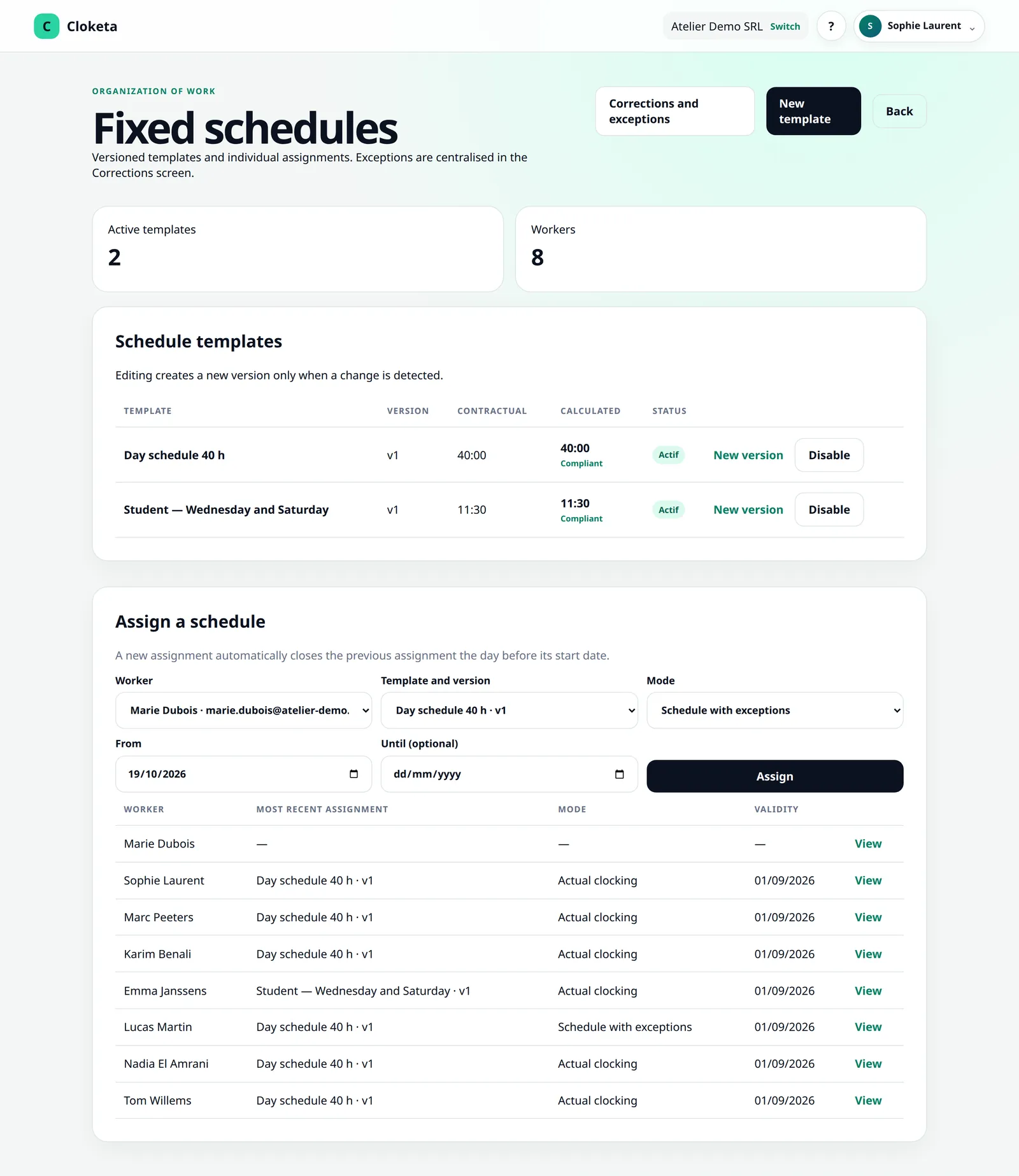
Let it run
The schedule is what counts: no clocking is created and the worker has nothing to do. If you wish, they confirm their day with one click on their dashboard: « Everything is correct » or « Report a difference » (optional).
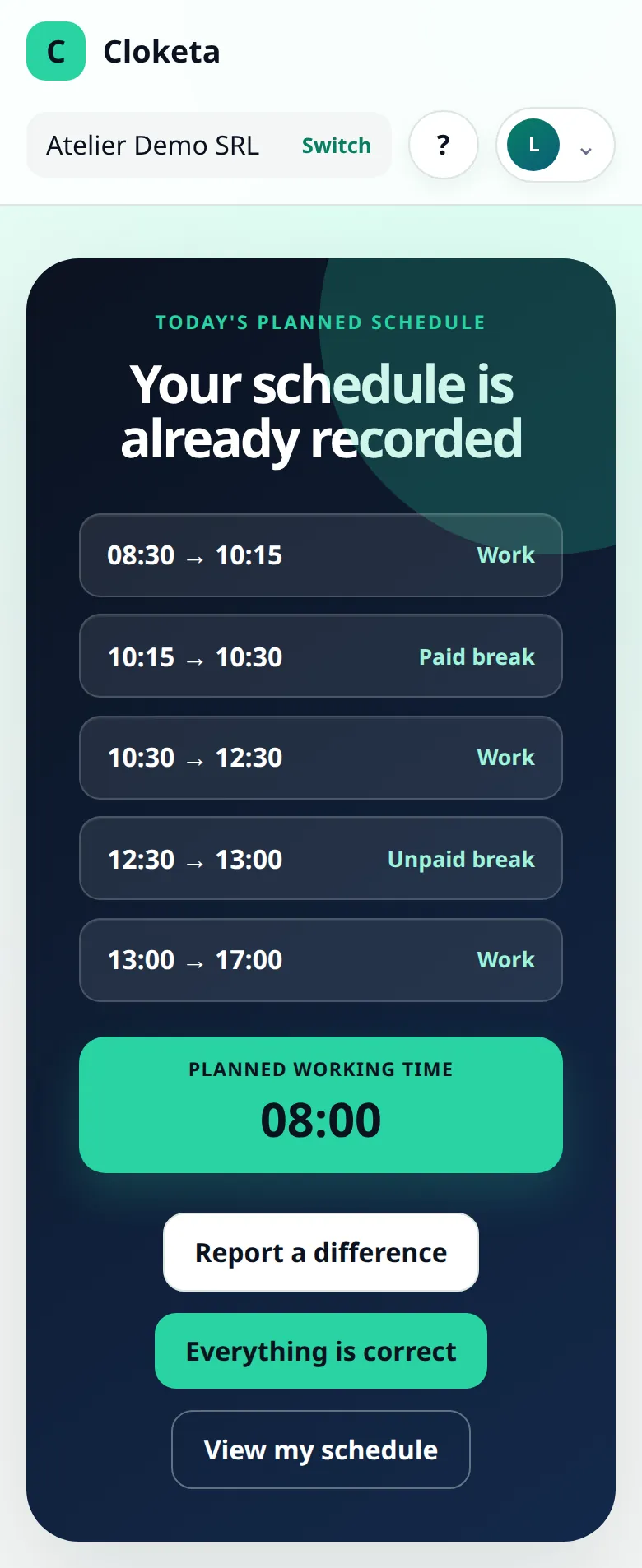
Handle the exceptions
Arrived late, did an extra hour, left early? The worker reports it as a schedule exception (« Report a difference »), with a reason. A manager approves or rejects it on the Corrections screen. An exception entered directly by a manager is approved automatically.
A week in the life of Sophie, on reception.
Illustrative example.
Sophie works Monday to Friday from 08:30 to 17:00, with an unpaid 30-minute break. From Monday to Wednesday, she does not even open Cloketa: her schedule is what counts. On Thursday, she stays until 18:00 for a delivery. She uses « Report a difference »: « End at 18:00 — taking in a delivery ». Her manager approves it the next morning. The planned schedule and the exception both remain visible in the history.
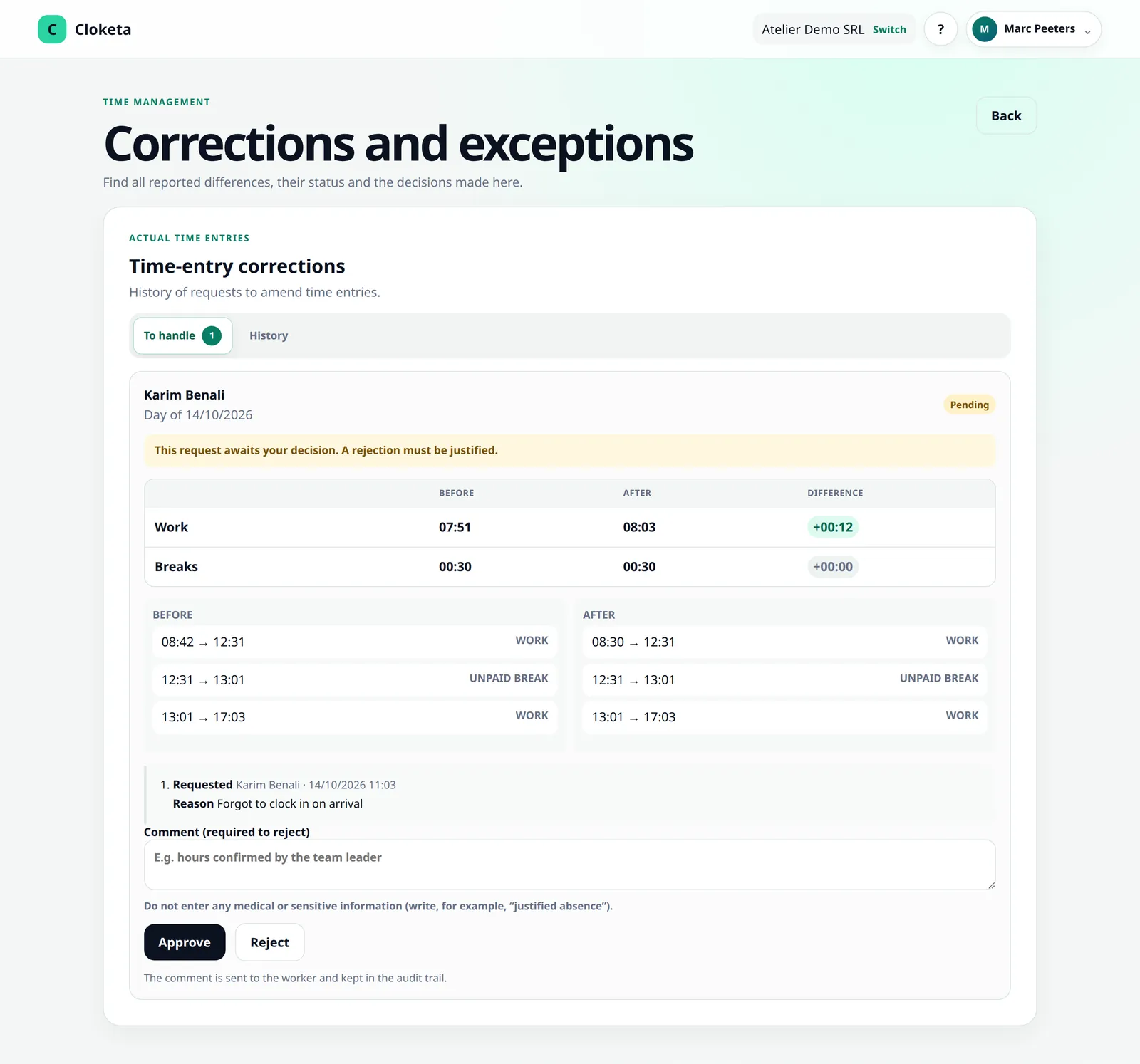
Less handling, the same traceability.
For jobs with regular hours, daily clocking mostly adds forgotten clockings to correct. The automatic schedule starts from what is planned and only asks you to step in when something differs. Each deviation is documented with a reason, an author and a decision.
According to the preliminary draft bill as publicly presented, employers with fixed schedules could limit themselves to recording schedule exceptions, provided the time actually worked can be deduced from them. This point is not final: we will adapt Cloketa to the adopted text.
What you can set up.
Settings
- Several schedules within the same company (full-time, part-time, split shifts), with the part-time arrangement shown for each worker.
- Company closing days, added on the Company page (public holidays, for example): on those days, no hours are planned, unless there is an exception.
- Who manages what: the owner, administrators and HR create and assign schedules; each manager handles the exceptions for their teams.
- Paid or unpaid breaks (this is the only case where a break can be paid), several time slots per day, an end time « the next day » for a night schedule.
- Switching a worker from schedule mode to actual clocking, and back, from a given date.
- Daily confirmation of the schedule by the worker (optional).
Good to know
- The schedule counts for what is planned, not for what actually happened. Deviations must be reported as schedule exceptions: it is up to the employer to check the days before payroll.
- It suits schedules that are genuinely fixed. For days that often vary, actual clocking is a better fit.
- Leave: if you enable the « Leave » module (included in the Enterprise offer; in the other plans, an option at €0.50 excl. VAT per active worker per month, switched on under Company › Options, then Company › Leave), workers request their leave under « My leave » and approved leave removes the hours planned for that day. Without the module, an absence is reported as a schedule exception that removes the day's time slots, with a free-text reason, for example « authorised absence ». Sickness is never managed in Cloketa: never enter medical data, as the application reminds you.
- Public holidays: add them yourself as closing days. Cloketa does not import them automatically.
Frequently asked questions about automatic schedules
Actual clocking or automatic schedule: how do I choose?
An automatic schedule for people with fixed, predictable hours, actual clocking for those whose days vary. The choice is made worker by worker, when assigning a schedule, and can change from a given date.
Read the full answer : Actual clocking or automatic schedule: how do I choose?
If my workers have fixed schedules, will they have to clock in every day?
Perhaps not. The preliminary draft, as presented, would allow employers whose schedules are fixed to record only the exceptions, provided the working time actually performed can be deduced from them. This point has yet to be confirmed by the final text.
Read the full answer : If my workers have fixed schedules, will they have to clock in every day?
Who is responsible if an automatic schedule is wrong?
The employer. You set up the schedules and you check the records, whether automatic or corrected, before any payroll run, declaration or communication to an authority.
Read the full answer : Who is responsible if an automatic schedule is wrong?
Can I write the medical reason for an absence in a correction?
No, never. Health data and other sensitive data are prohibited in reasons, comments and attachments.
Read the full answer : Can I write the medical reason for an absence in a correction?
Free trial
Set up your schedules once and for all.
Create a schedule, assign it to your workers on fixed hours and let them work without clocking in. If you would rather we did it for you, Cloketa Start is there.